coming soon!
Introducing
Skeletune
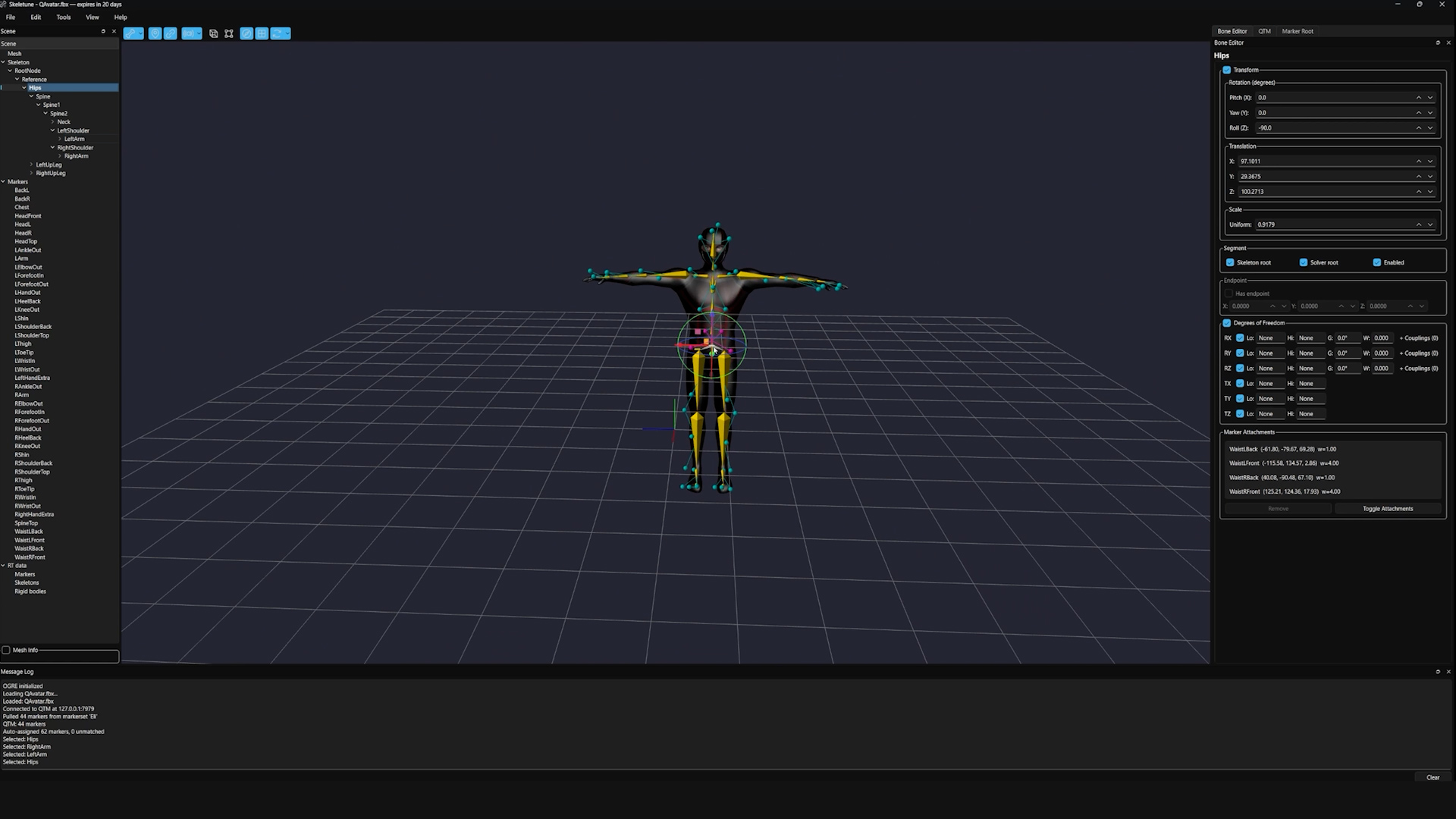
Skeletune builds, adjusts, and verifies the solver model that turns marker data into character motion, in one window, checked against the actual mesh, not just the bones.
Skip the retarget
Solve to your skeleton
A solver model links a skeleton to the markers on a performer. It sets each bone’s degrees of freedom (DOFs), which markers drive the bone and how strongly, and the reference pose. Skeletune lets you build that model on the character your art team delivers.
Skeleton and markersFitted on the skin
Fitted to the performer
- The solver fits a skeleton to the performer’s markers
- Bone lengths follow the performer and can differ between left and right
- The solved skeleton is exported and retargeted onto the character in another application
Problems such as floating feet often show up only when the character reaches the engine.
Built on the character with Skeletune
- Load the character from FBX or USD and pull the markerset from QTM
- Fit the skeleton to the markers with the character’s skin on screen
- Push the solver model to QTM, which solves the performer straight onto the character
The solve is the retarget. Check the result with a live or recorded stream before the session.
What Skeletune does
Build, adjust and check the solver model
-
 View larger
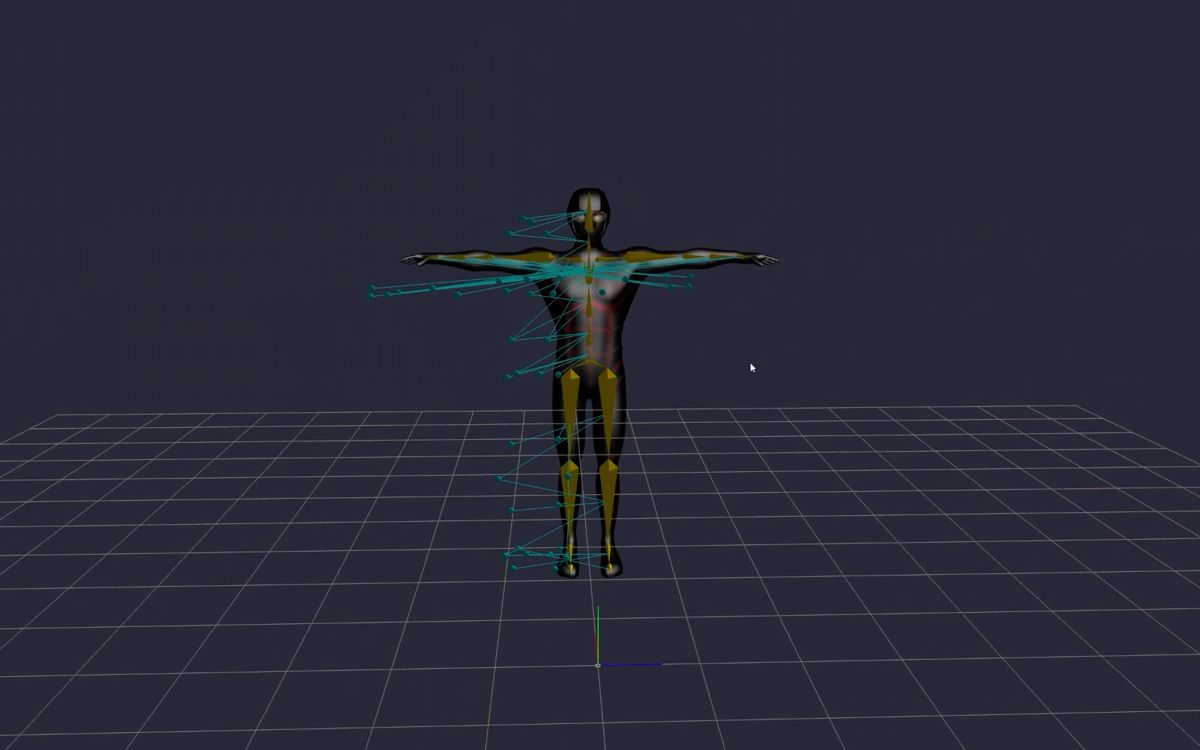
01Build a new solver modelAuto-Assign markers on a delivered character
0101-BUILD
Build a new solver model
Load a delivered FBX or USD character, pull the markerset from QTM and build the character’s solver model from scratch.
-
 View larger
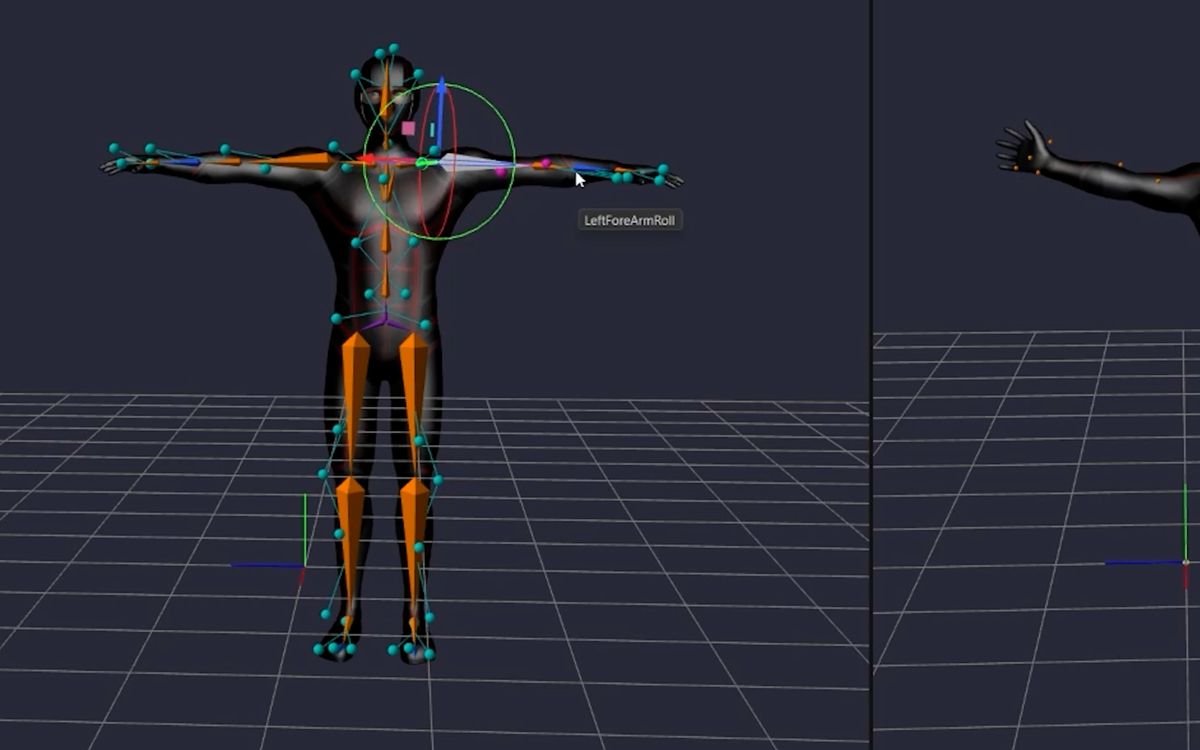
02Adjust an existing modelBones colored by degrees of freedom
0202-ADJUST
Adjust an existing model
Pull any skeleton from your QTM project. Edit DOFs, marker attachments, weights and the model pose when a solve shows artifacts.
-
 View larger
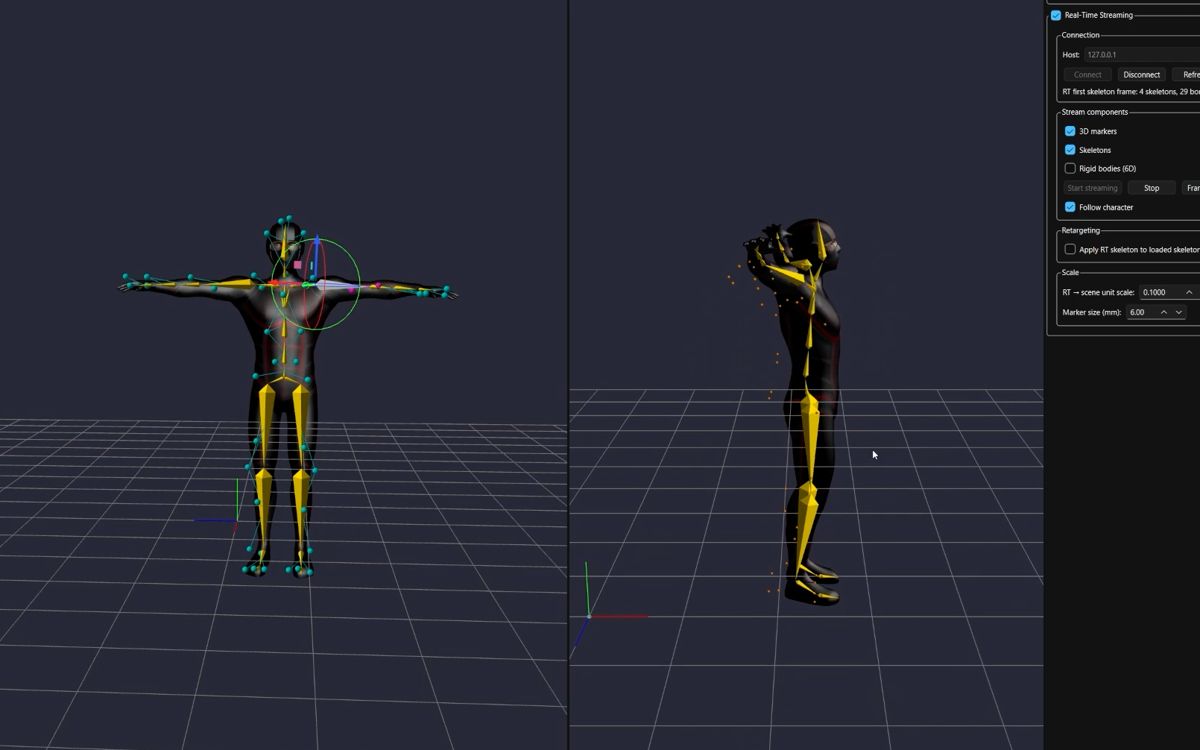
03Get the fit before the stageLive QTM data streamed onto the character
0303-CHECK
Get the fit before the stage
Stream live or recorded QTM data onto the character. Check feet, hands and contact before talent arrives.
See how Skeletune Works
How it works
From delivered character to solved skeleton
Guided workflows walk you through each step the first time you open Skeletune. Point to a step to see it in the application, or click it to open the screenshot full size. File > Examples > QAvatar opens a sample character, so you can try it without one of your own.
 View larger
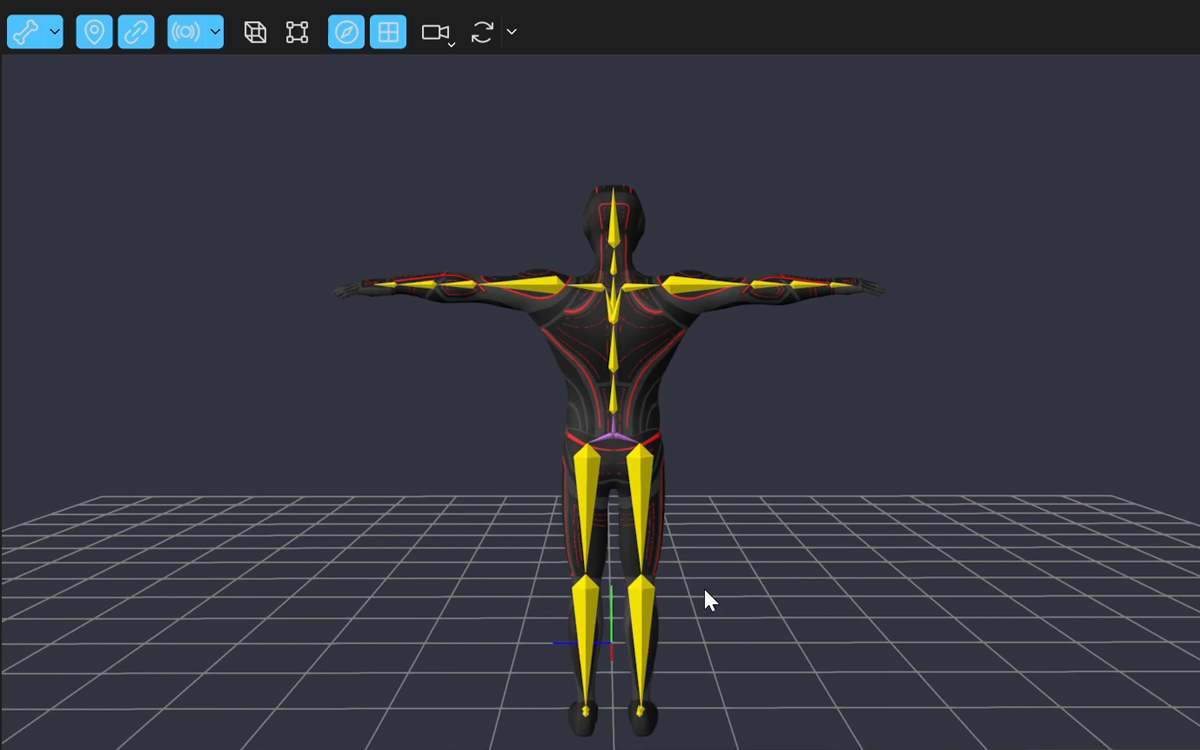
01Load the characterOpen an FBX or USD file. Skeletune reads its units and up axis and never changes the source file.
 View larger
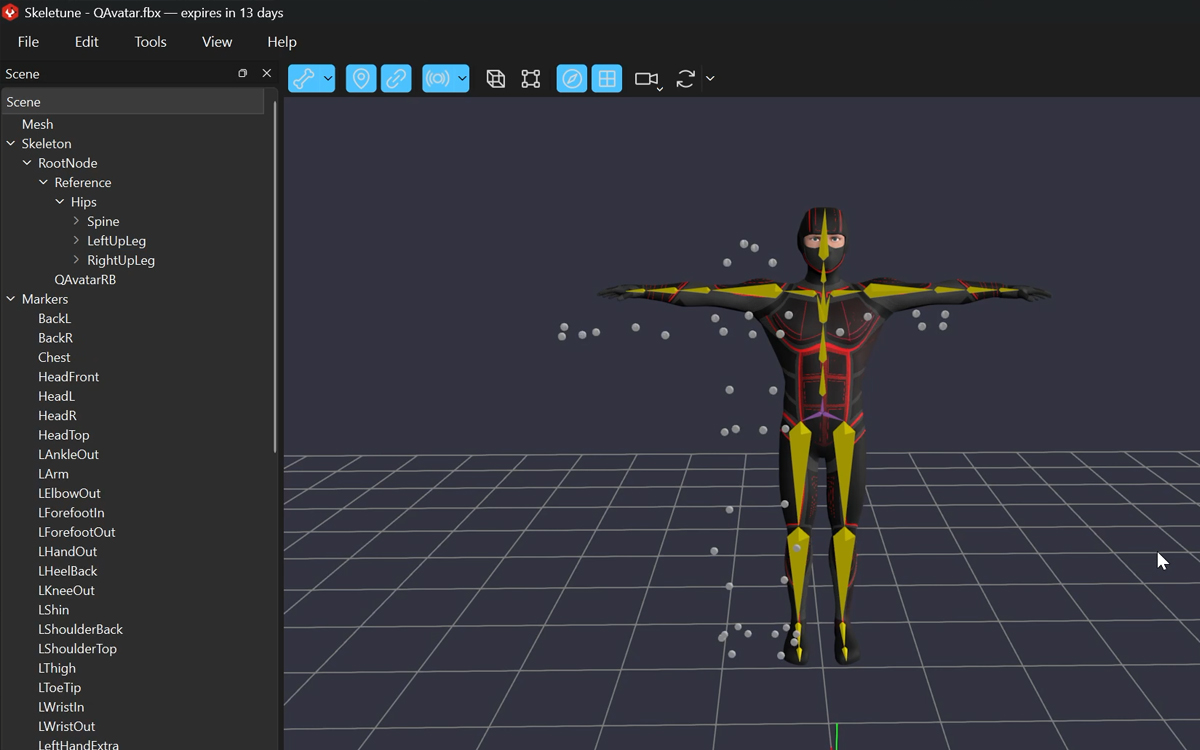
02Pull the markersConnect to QTM over its REST API and pull the markerset. New markers appear gray until they are attached.
View larger
03Run Auto-AssignMarkers attach to bones, hands and fingers included, for the Qualisys avatar, Mixamo and MetaHuman rigs. Add your own rig to the database once.
 View larger
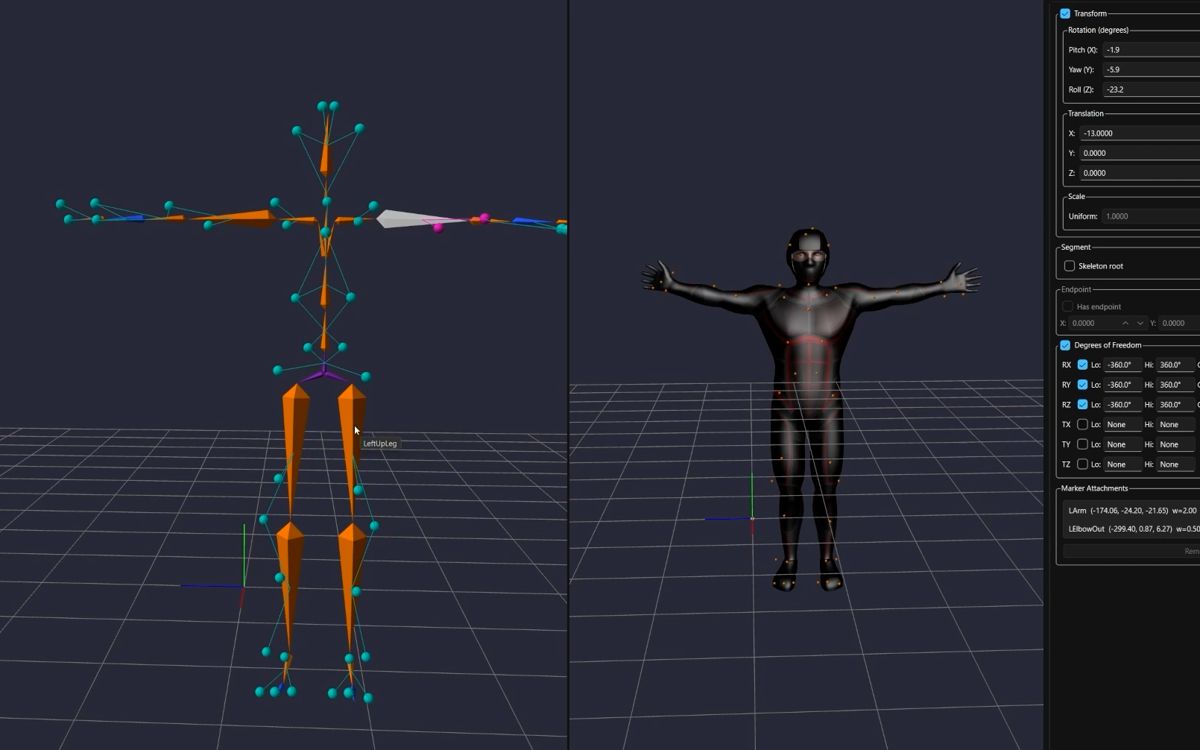
04Set DOFs and attachmentsIn the Bone Editor, enable each joint’s DOFs and attach markers to bones that Auto-Assign did not cover.
 View larger
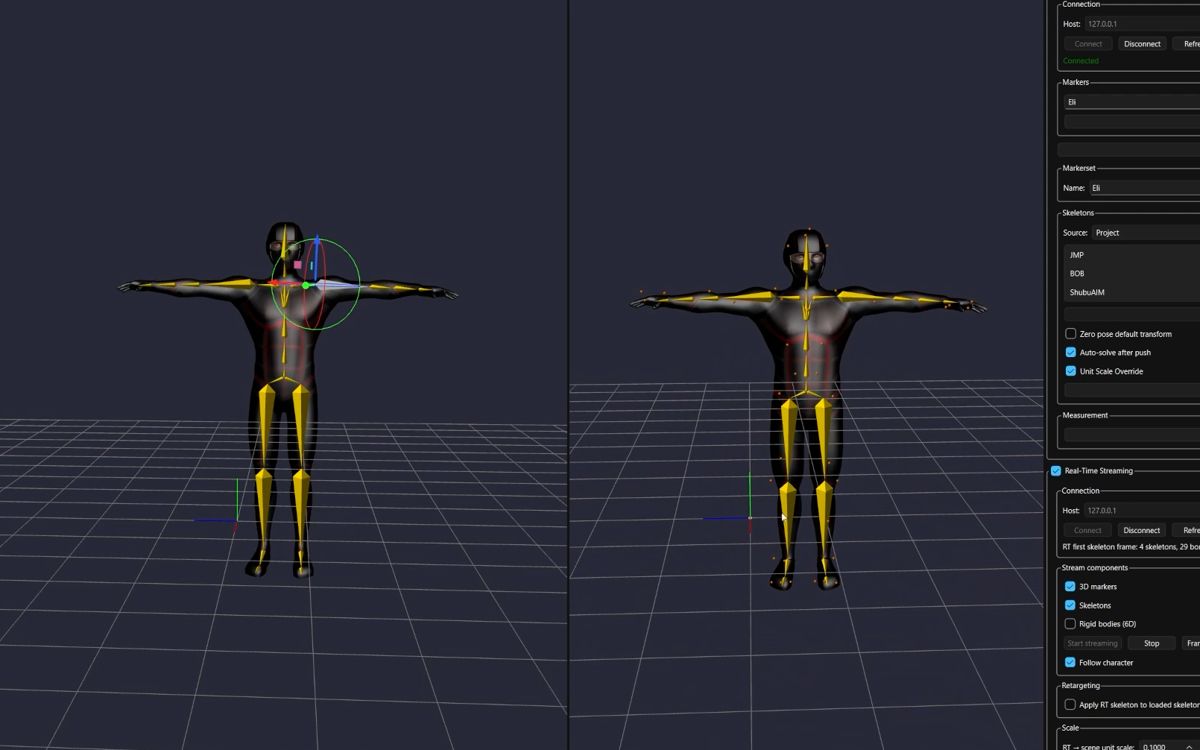
05Fit the model poseScale and place the skeleton root, then pose each bone from the hips outward until the skin sits on the markers.
 View larger
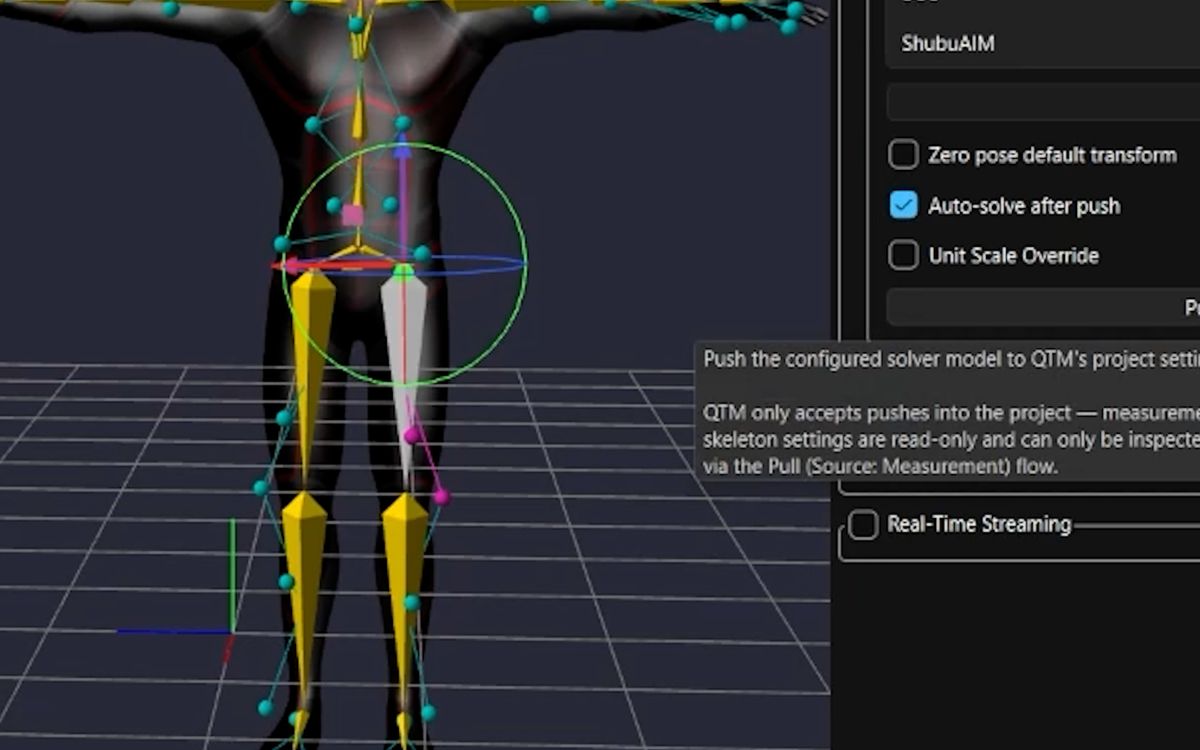
06Push to QTMSend the solver model to your QTM project. Name checks warn you about names that can break streaming.
View larger
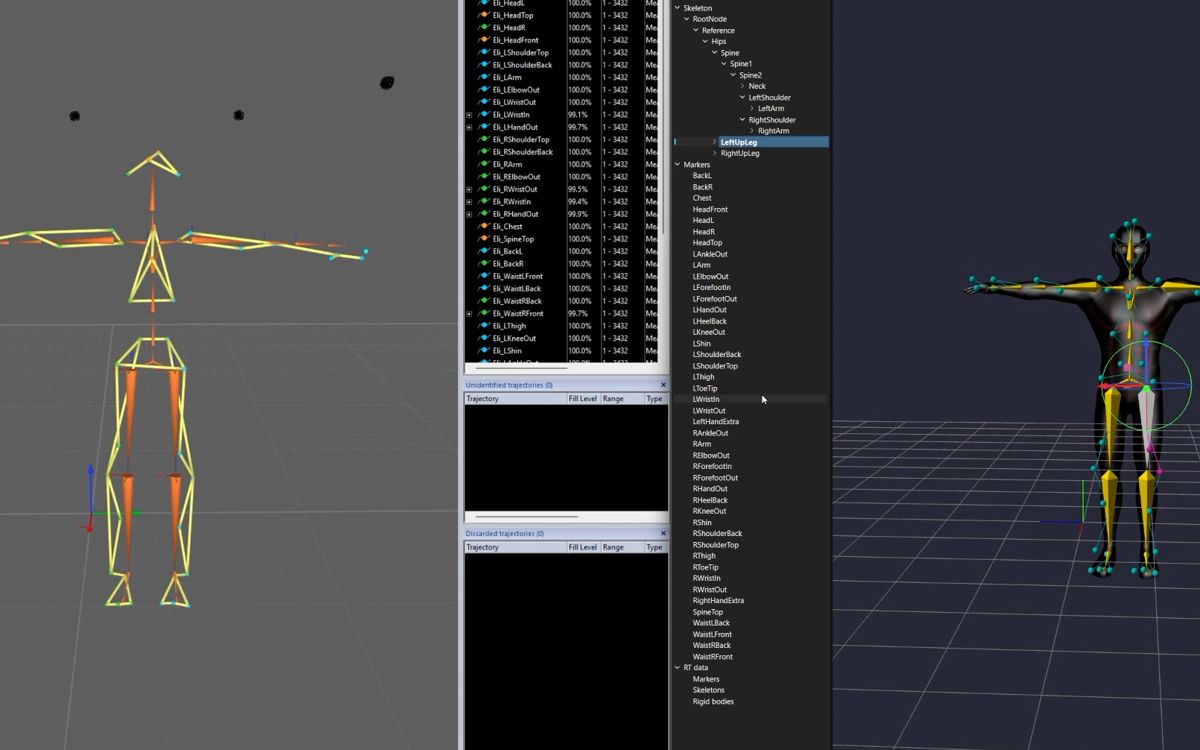
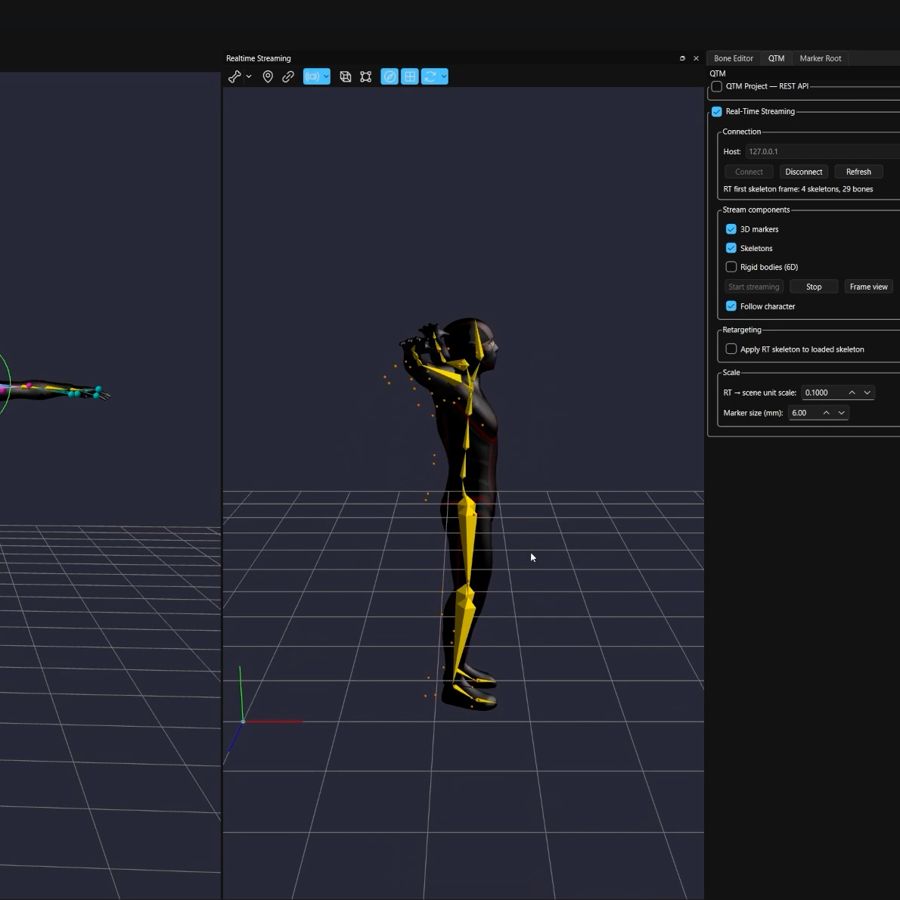
07Check with a streamStream live or recorded QTM data onto the character. Watch the feet and hands, and scrub a take frame by frame.
 View larger
08Save the projectA .tune file saves the setup next to the character’s FBX and links to it, so the project reopens with the character loaded.
-
01
Load the character
Open an FBX or USD file. Skeletune reads its units and up axis and never changes the source file.
View larger
01Load the characterOpen an FBX or USD file. Skeletune reads its units and up axis and never changes the source file.
-
02
Pull the markers
Connect to QTM over its REST API and pull the markerset. New markers appear gray until they are attached.
View larger
02Pull the markersConnect to QTM over its REST API and pull the markerset. New markers appear gray until they are attached.
-
03
Run Auto-Assign
Markers attach to bones, hands and fingers included, for the Qualisys avatar, Mixamo and MetaHuman rigs. Add your own rig to the database once.
View larger
03Run Auto-AssignMarkers attach to bones, hands and fingers included, for the Qualisys avatar, Mixamo and MetaHuman rigs. Add your own rig to the database once.
-
04
Set DOFs and attachments
In the Bone Editor, enable each joint’s DOFs and attach markers to bones that Auto-Assign did not cover.
View larger
04Set DOFs and attachmentsIn the Bone Editor, enable each joint’s DOFs and attach markers to bones that Auto-Assign did not cover.
-
05
Fit the model pose
Scale and place the skeleton root, then pose each bone from the hips outward until the skin sits on the markers.
View larger
05Fit the model poseScale and place the skeleton root, then pose each bone from the hips outward until the skin sits on the markers.
-
06
Push to QTM
Send the solver model to your QTM project. Name checks warn you about names that can break streaming.
View larger
06Push to QTMSend the solver model to your QTM project. Name checks warn you about names that can break streaming.
-
07
Check with a stream
Stream live or recorded QTM data onto the character. Watch the feet and hands, and scrub a take frame by frame.
View larger
07Check with a streamStream live or recorded QTM data onto the character. Watch the feet and hands, and scrub a take frame by frame.
-
08
Save the project
A .tune file saves the setup next to the character’s FBX and links to it, so the project reopens with the character loaded.
View larger
08Save the projectA .tune file saves the setup next to the character’s FBX and links to it, so the project reopens with the character loaded.
Features
See and edit the model behind every solve
-
View larger
See any solver modelPull a skeleton from your QTM project, including one made with Calibrate Skeleton. View its bones, DOFs, attachments and weights, then edit and push it back.
See any solver model
Pull a skeleton from your QTM project, including one made with Calibrate Skeleton. View its bones, DOFs, attachments and weights, then edit and push it back.
-
 View larger
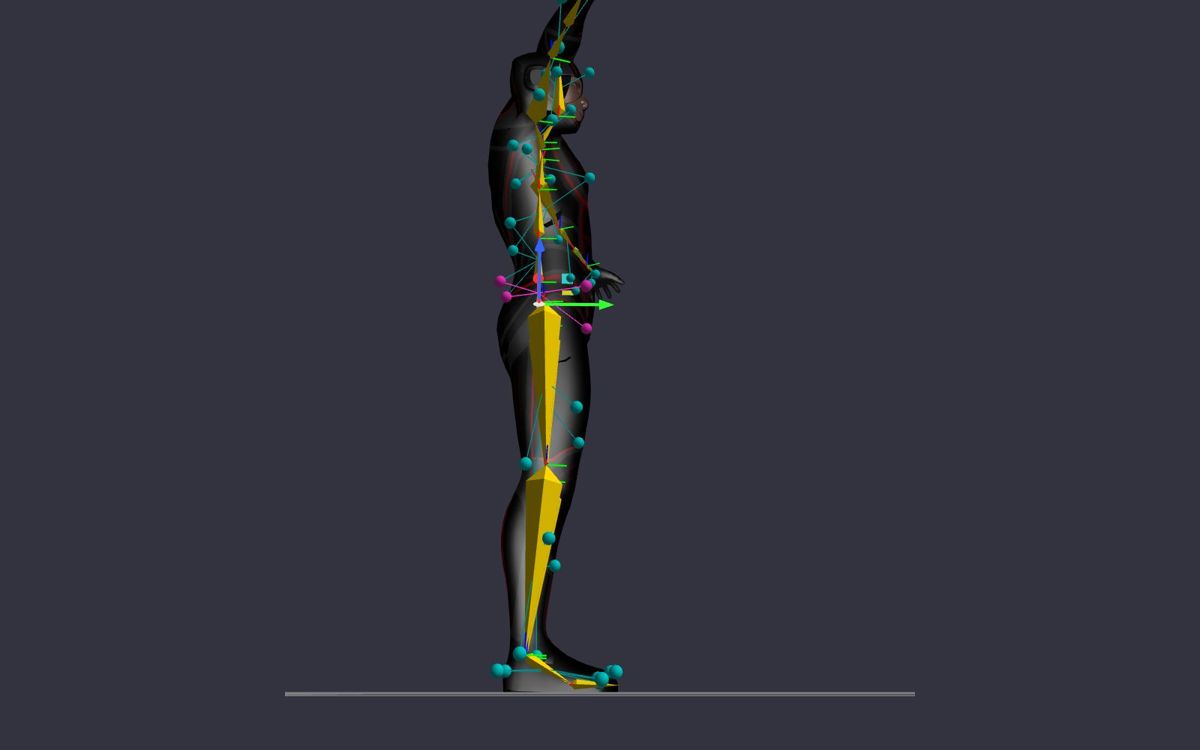
Fit on the skinThe rendered character mesh stays on screen while you set the model pose. Quad view, 15-degree snapping and fine drag help you place each bone.
Fit on the skin
The rendered character mesh stays on screen while you set the model pose. Quad view, 15-degree snapping and fine drag help you place each bone.
-
 View larger
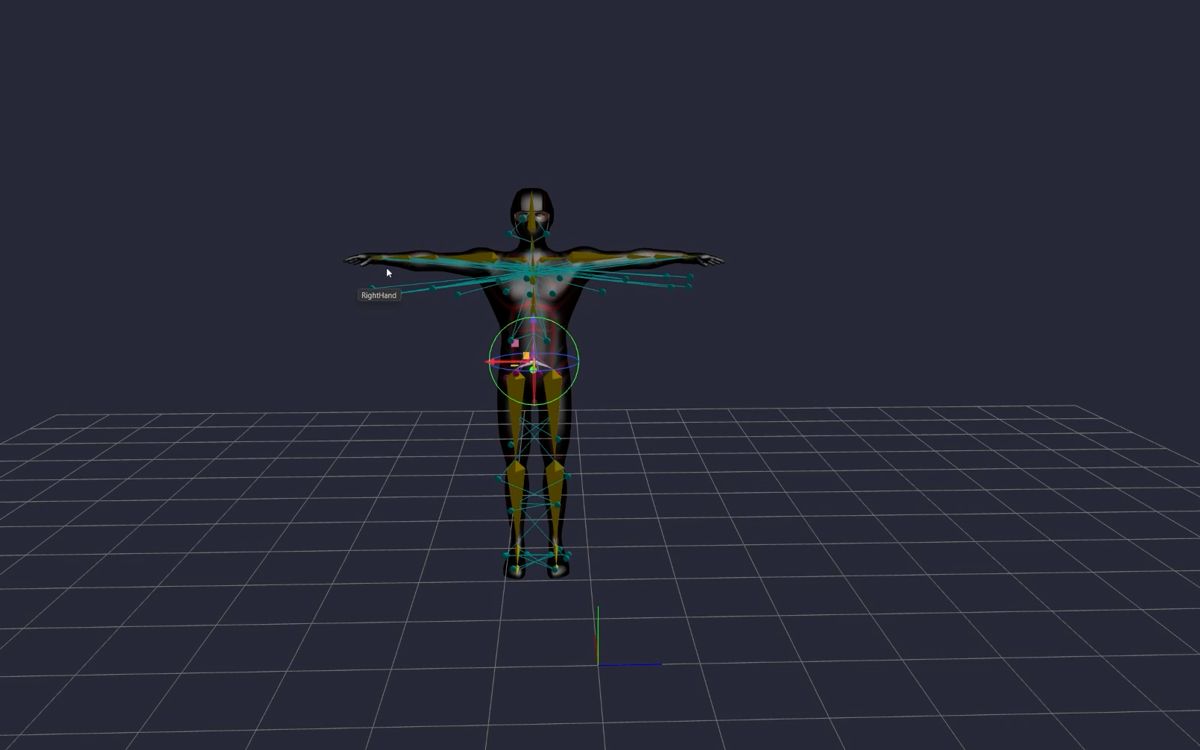
Leaner markersets mean less cleanupThe solver works on the whole model at once, so a hinge joint needs fewer markers than a ball joint. Every marker you drop is one less trajectory to label, fill and edit.
Leaner markersets mean less cleanup
The solver works on the whole model at once, so a hinge joint needs fewer markers than a ball joint. Every marker you drop is one less trajectory to label, fill and edit.
-
 View larger
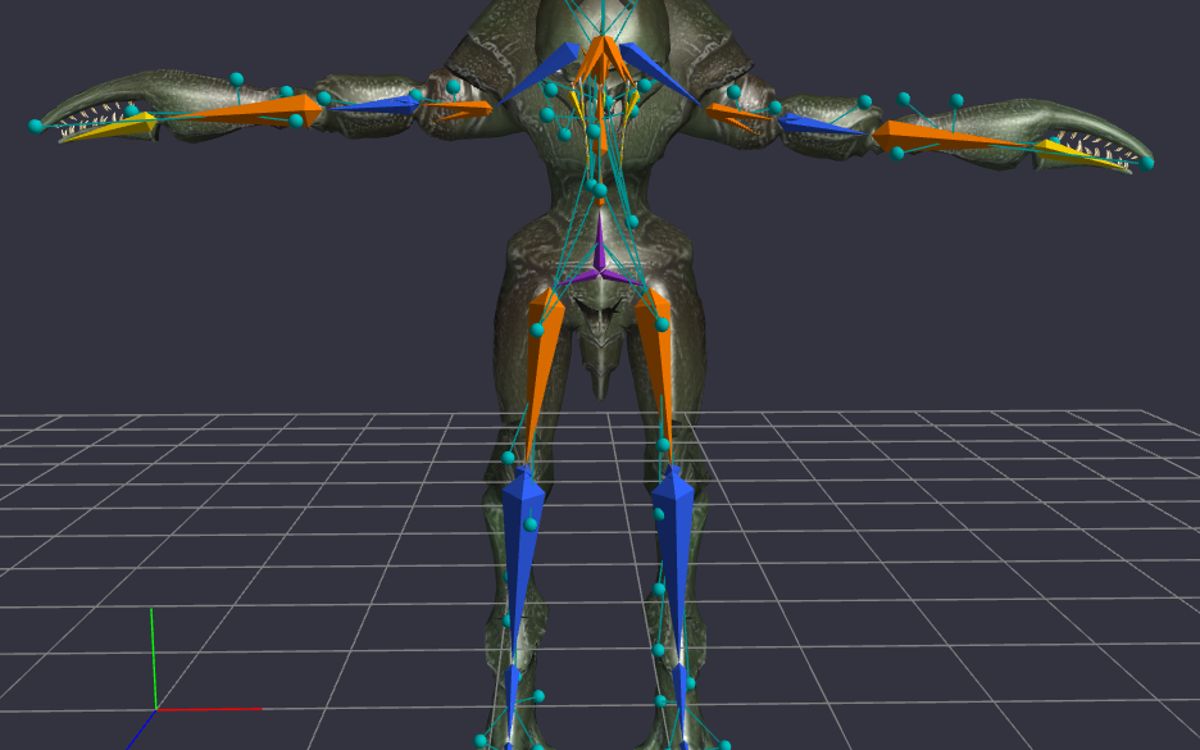
Any markerset, any rigCreatures, stylized characters and custom markersets use the same workflow. Set DOFs, couplings, attachments and weights per bone. Bones without markers stay out of the solve.
Any markerset, any rig
Creatures, stylized characters and custom markersets use the same workflow. Set DOFs, couplings, attachments and weights per bone. Bones without markers stay out of the solve.
-
 View larger
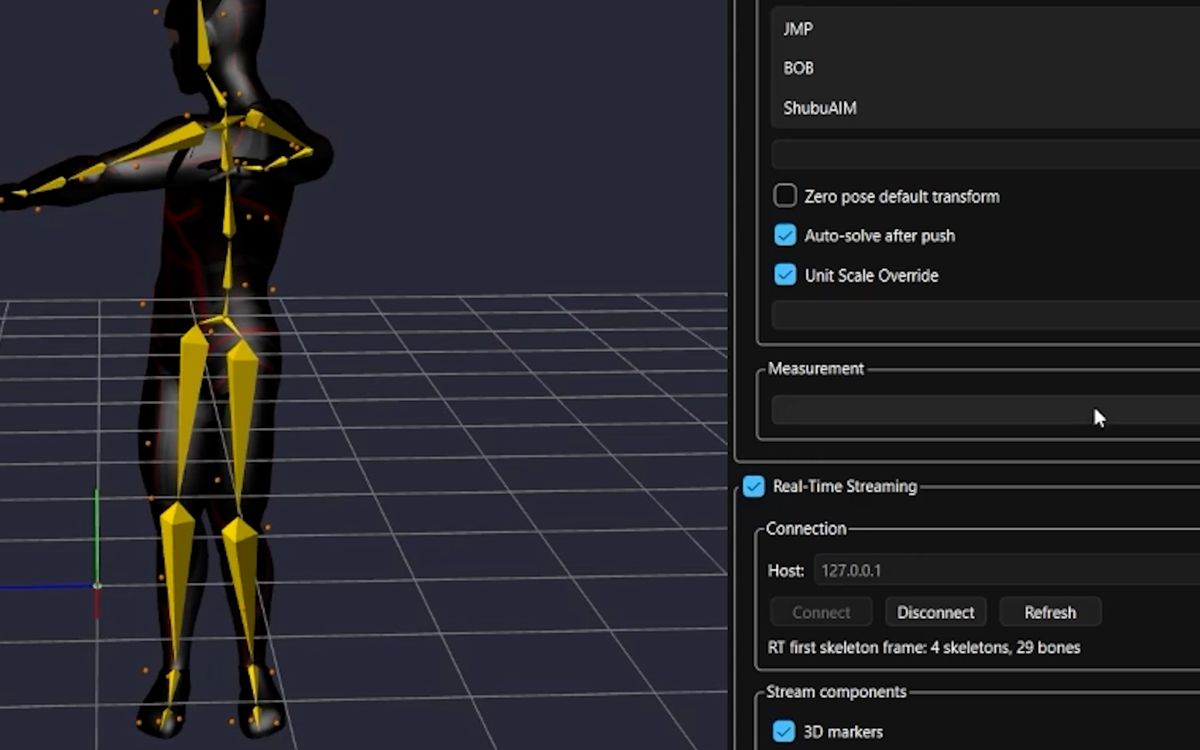
Get the fit before the stageStream live data onto the character, or scrub a recorded take frame by frame. Floating feet and arms through the thighs show up in your first look, so you can avoid the retake.
Get the fit before the stage
Stream live data onto the character, or scrub a recorded take frame by frame. Floating feet and arms through the thighs show up in your first look, so you can avoid the retake.
-
 View larger
Fits your QTM workflowPull markers and existing solver models, then push with Auto-solve. Name checks warn you before a stream breaks. Save .tune projects and import Cortex .mars files.
Fits your QTM workflow
Pull markers and existing solver models, then push with Auto-solve. Name checks warn you before a stream breaks. Save .tune projects and import Cortex .mars files.
Fits the QTM pipeline you already run
Skeletune is the setup and check step. QTM still captures, labels and solves your takes, and streams them to your engine.
| Characters | FBX and USD (.usd, .usda, .usdc). No bone limit, so MetaHuman bodies open in full |
|---|---|
| Solver models | .tune projects, XML import and export, Cortex .mars import with coupled joints |
| QTM connection | REST API to pull markers and push solver models. Real-time protocol to stream live or recorded data |
| Markersets | Any markerset in your QTM project, including custom ones |
| Scripted fitting | Define the solver model in Skeletune, then fit it to each performer with a script in QSI, the QTM Scripting Interface |
| Auto-Assign rigs | Qualisys avatar, Mixamo and MetaHuman, with hand and finger definitions, plus any rig you add to the marker database |
| Engines and tools | Unreal Engine, Unity, MotionBuilder and Maya receive the solved skeleton through the QTM plugins |
| System | Windows 10 or 11 and a graphics card that supports Vulkan or Direct3D 12 |
For the people who set up characters for capture
You need to know QTM. You do not need to model or rig characters yourself.
-
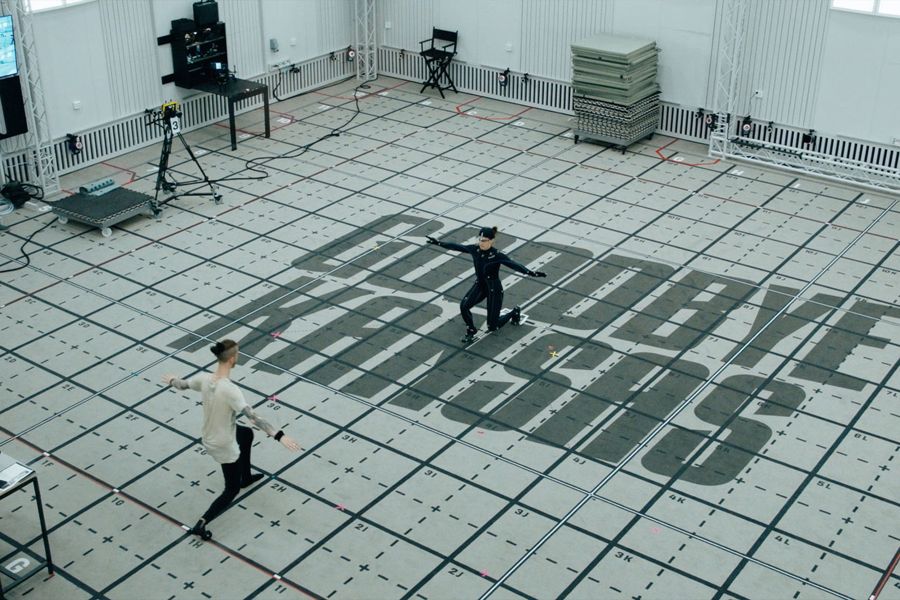
Mocap TDs and stage operators
Build the solver model for each new client character and check it before talent arrives. Stage time goes to takes.
-
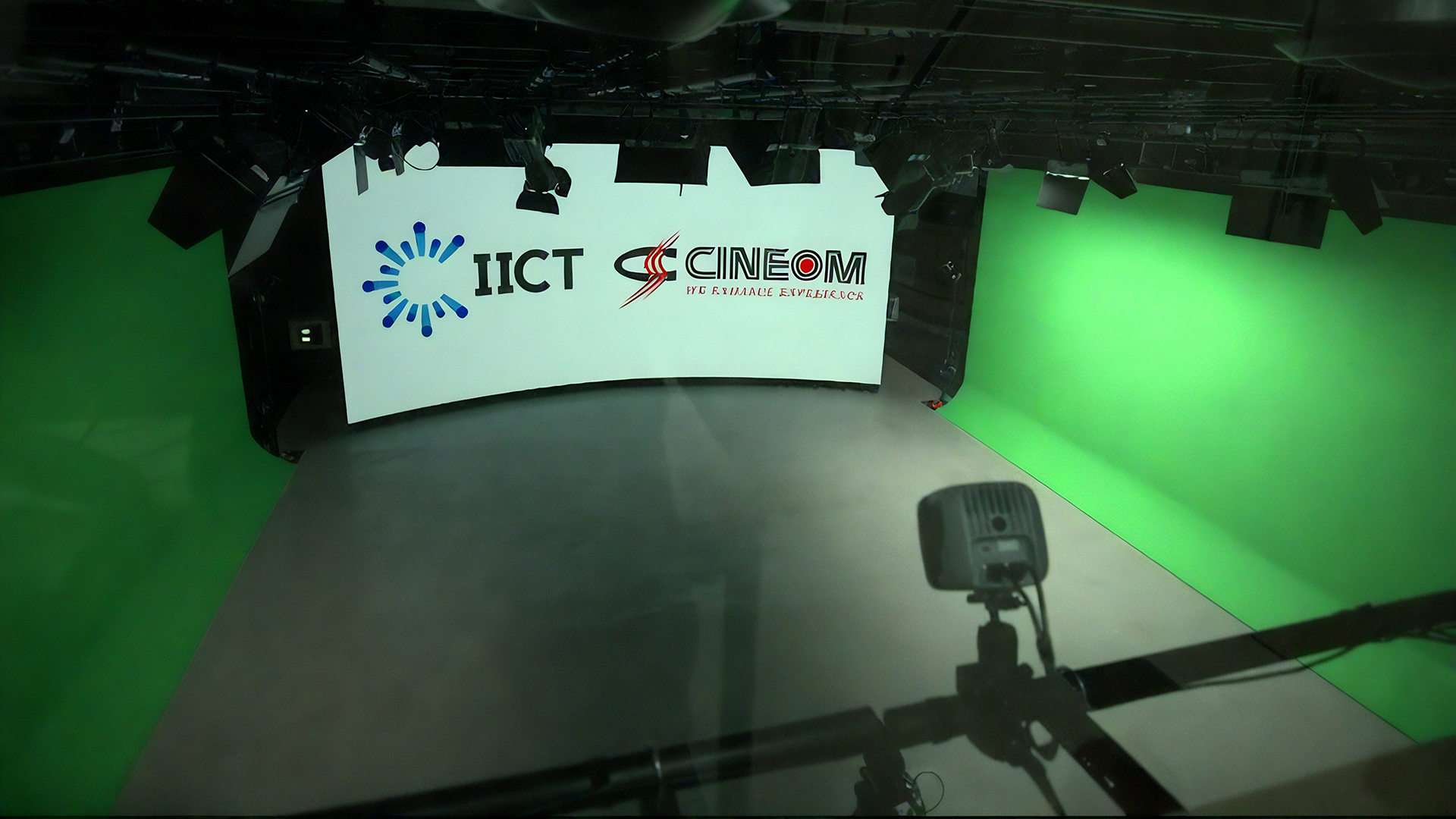
Real-time and virtual production teams
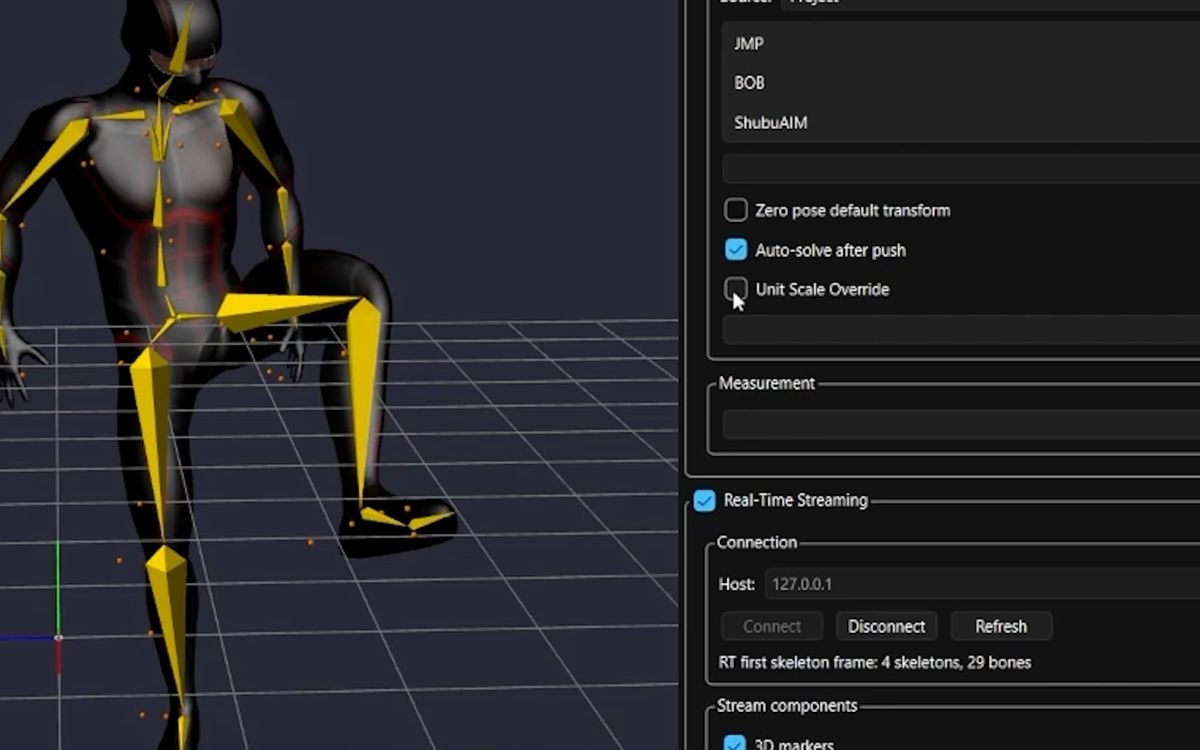
Stream a solved character into Unreal Engine. Unit Scale Override keeps feet on the floor and hands on props.
-

Live performance teams
Nudge a single marker to rebalance a take, and check the avatar live before the show.
“Moving markers is extremely welcomed to reequilibrate a take if a performer had slightly misplaced markers.”
Adryan Barrilliet, Cie Gilles Jobin, beta user
Questions
Frequently asked questions
What is a solver model?
A solver model is the relationship between a skeleton and the markers on a performer. It holds the bones, their degrees of freedom, the marker attachments and their weights, and the model pose. QTM uses it to solve motion onto the skeleton.
Can I use my own markerset?
Yes. Skeletune pulls any markerset from your QTM project, including custom ones, and you attach its markers to the character’s bones.
How is Skeletune different from Calibrate Skeleton in QTM?
Calibrate Skeleton fits a skeleton to the performer, so its proportions follow that person. Skeletune builds the solver model on your character, so QTM solves the performer directly onto it.
Is Skeletune a retargeting tool?
Skeletune sets up the solver model. QTM then solves straight onto the character’s skeleton, so QTM solves straight onto the character’s skeleton. The solve is the retarget.
Can I edit skeletons I already have?
Yes. Pull any skeleton from your QTM project, view and edit it, and push it back. You can also import XML and Cortex .mars files.
Does it work on creatures and stylized characters?
Yes. Auto-Assign covers rigs with known bone names. For other rigs, set the DOFs, attachments and weights per bone in the Bone Editor.
Does Skeletune set up hands and fingers?
Yes. Auto-Assign includes hand and finger definitions. Fingers with markers are solved with the body, and QTM also supports Manus and StretchSense gloves.
Does Skeletune change my FBX file?
No. Skeletune reads the source file and saves its settings in a separate .tune project file.
What do I need to run it?
A Windows 10 or 11 PC with a graphics card that supports Vulkan or Direct3D 12, and QTM with the REST API enabled. Skeletune is not available for Mac.

BETA ACCESS
Get Early Access to Skeletune
Sign up for our beta program. We’ll follow up with a download link and onboarding notes.